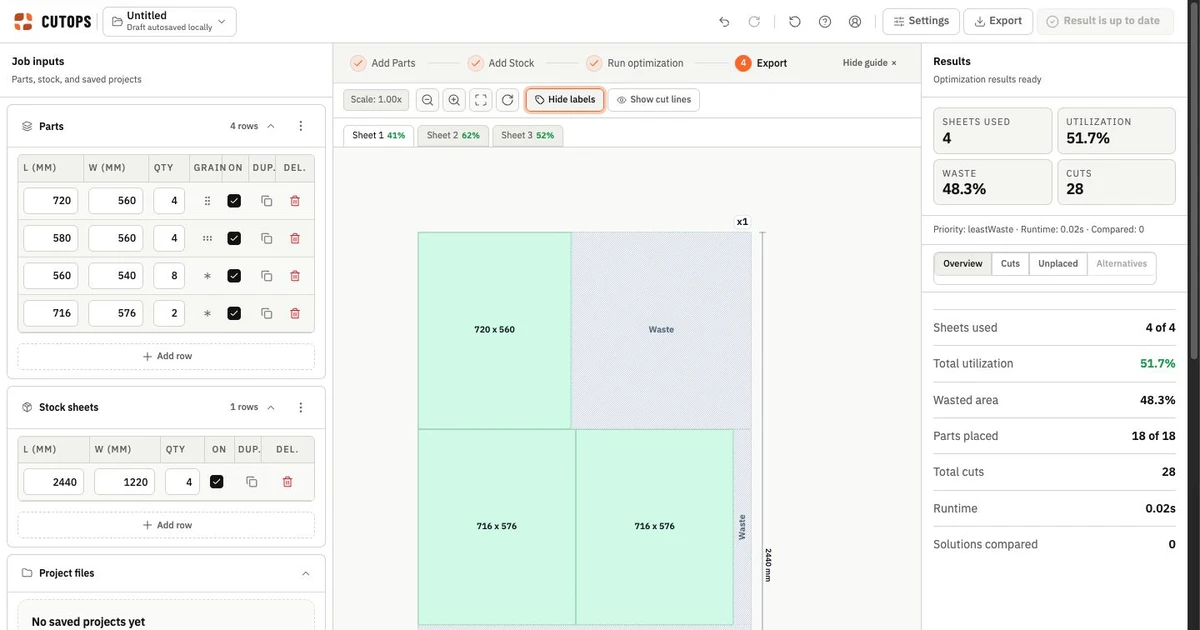
Why cabinet jobs are harder to plan than they look
Cabinet jobs appear well-structured on paper. You have a parts list, a material spec, and a production timeline. But the planning step between the parts list and the cut layout requires careful checks of dimensions, quantities and constraints.
Cabinet components repeat across units — sides, shelves, bottoms, rails — but with small dimension variations between unit sizes. A 12-inch base cabinet may share a similar parts breakdown with a 24-inch base cabinet, while some dimensions change and others stay the same. Verify each variation before grouping parts into a shared row.
When this work happens in a spreadsheet or by hand, it consumes significant planning time on every project. The goal of a structured cabinet cut list workflow is to make that time consistent and short.
Step 1: Organize parts by cabinet module, then by material
Group your parts list by cabinet module first, then separate by material. Most cabinet jobs use two or three materials — melamine or MDF for carcass, a different finish for visible faces, and a secondary material for backs.
Separate material types and thicknesses into distinct runs for a simple workflow. If using material matching, enter the correct material identifiers on parts and stock and enable the control; do not assume material names alone activate matching.
Common cabinet components to include
- Sides (left and right, usually paired)
- Top and bottom panels
- Fixed and adjustable shelves
- Back panel (often thinner stock)
- Nailers and stretchers
- Toe kick components
- Door panels (if cut on site)
Drawer components — box sides, bottoms, fronts — often come from a different material run. Separate them from the main carcass cut list from the start.
Step 2: Lock orientation for visible components
Cabinet sides and door panels typically require a fixed orientation. Shelves are often unconstrained. Disabling 90-degree rotation per part prevents the optimizer from rotating a cabinet side to improve nesting when that would make the component unusable.
Set rotation locks before the first optimization run. CutOps adds material matching and grain-direction enforcement when parts must align with compatible stock. Applying required constraints after the fact means running the optimizer again.
Step 3: Convert finished dimensions into saw-cut dimensions
Keep the required finished dimensions in your job specification. Enter the actual width and length the saw must cut into CutOps. Account for edge-banding thickness, trimming, and any machining allowance according to your production method before entering the parts. CutOps does not calculate edge-banding allowances.
If you cut oversize and trim later, enter the oversize blank dimensions. Keep edge-banding and secondary-operation notes with the job so the operator can check the relationship between the cut size and the finished size.
Step 4: Set kerf for your primary panel saw
Enter the measured cutting width of the saw and blade used for the primary cuts. The kerf value depends on the actual setup; do not assume a standard value from the machine type.
Kerf reserves material between cuts and can change which parts fit on the available sheets. Review the resulting layout and every unplaced part. The effect depends on part sizes, stock, quantities, orientation and the selected settings.
Step 5: Compare optimization strategies before committing
For cabinet batch production, strategy selection has real impact. An optimization strategy that minimizes sheet count may produce complex cut sequences. An alternative may simplify handling while using more stock; check that tradeoff against your actual workshop process.
Run at least two strategies in CutOps and compare:
- Sheets required
- Cut count per sheet
- Overall utilization percentage
Compare sheet count, cut count and handling requirements. Check the alternatives against your workshop process; no time saving follows from utilization alone.
Step 6: Validate before cutting
CutOps uses heuristic optimization and can leave parts unplaced. Before the first sheet goes on the saw, verify the layout against the physical job:
- Are all required part units placed?
- Do sheet quantities in the plan match sheets available on the floor?
- Are all labeled parts in the layout recognizable to the operator?
- Do any parts appear on the wrong material sheet?
Complete this review before releasing the job to the saw.
Exporting for the production floor
Choose the formats your team needs and your plan includes.
PDF layout sheets give operators a visual reference that can be marked up and attached to a job packet.
CSV cut list provides structured data for compatible downstream workflows. Check and map column names, units and schema requirements in the receiving software; CSV export does not establish direct machine compatibility.
Label each export with the project name, the run date, and the material specification. Cabinet shops running multiple projects simultaneously need traceability between the cut plan and the job it belongs to.
Open the woodworking cut optimizer or start a new job in CutOps to apply this workflow to your next cabinet project.