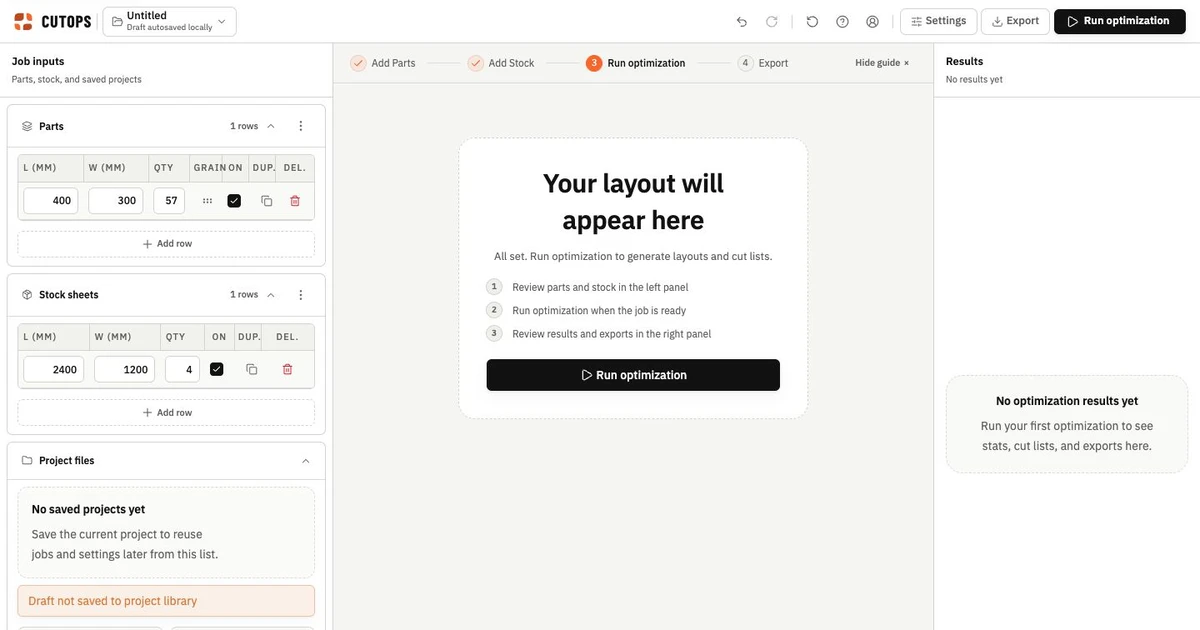
What a cut list actually contains
A cut list is a structured record of every part needed for a job, organized by the dimensions the saw must cut. It answers three questions: what size is each part, how many are needed, and what material does each come from.
A complete cut list for production includes:
- Part name or label
- Saw-cut width and length, with required finished dimensions recorded separately
- Quantity
- Material or sheet stock reference
- Orientation constraint (grain direction, if applicable)
- Any edge banding or secondary operations
A cut list that is missing any of these creates decision points at the machine. That is where miscutting happens.
If you need a consistent starting schema, use the CutOps cut list template and import the completed CSV into the workspace.
Step 1: List every part by saw-cut size
Start with the dimensions the saw must cut, not rough estimates. Kerf accumulates across a large job, so set the blade width in CutOps. Record edge-banding requirements separately and adjust part dimensions for your production method because CutOps does not model edge-banding allowances.
Group parts by material. If a job uses three different sheet materials, keep them in separate groups from the start. Mixing materials in one list creates confusion during layout.
Practical check before moving on
Read back every row and ask: "Does this part exist in the finished product?" Keep required template pieces and test cuts clearly labeled and plan their material use separately so they are not confused with finished-product parts. Remove accidental duplicates and superseded design versions.
Step 2: Define your sheet stock
Your stock definition controls the optimizer's output. Inaccurate stock assumptions produce efficient-looking layouts that do not match reality.
For each material:
- Set the actual sheet dimensions available, not a nominal size
- Enter the quantity of sheets on hand if you are working from fixed inventory
- Separate standard sheets from offcuts or remnants
If you enter a 2440 × 1220 sheet for material that actually arrives at 2438 × 1219, every part near the edge becomes a risk. Measure, then enter.
Step 3: Set constraints before optimizing
Constraints must be set before the first optimization run. Applying them after the fact requires a full rerun and often changes the layout enough to invalidate earlier review.
Kerf: Enter the blade width for your primary saw. Even 3 mm of kerf multiplies across dozens of cuts and hundreds of parts into significant lost area.
Grain direction: Disable 90-degree rotation on any part whose orientation must remain fixed. CutOps also enables material matching and grain-direction enforcement between compatible part and stock rows.
Rotation: Some parts can rotate 90 degrees to improve nesting without affecting fit or finish. Others cannot. Mark non-rotatable parts explicitly.
Step 4: Run the optimizer and review utilization
After the first optimization run, check three metrics before accepting the layout:
Sheet utilization percentage. Judge this against accepted jobs with comparable geometry, stock, kerf, and orientation rules. There is no universal pass percentage; investigate meaningful changes from your own baseline.
Cut count. More cuts can increase handling. If the count is higher than expected, review the placement and cut sequence against the intended process. Compare alternatives using the same inputs and required constraints.
Unplaced parts. Any part that does not appear in the layout means the job cannot proceed as planned. Identify the cause — usually a part that is too large for the defined stock, or a quantity that exceeds available sheets.
Step 5: Compare strategies before committing
Different layout strategies can emphasize different production goals. CutOps provides side-by-side strategy comparison.
When comparison is available and the tradeoff matters, keep inputs fixed and review:
- Which uses fewer sheets?
- Which produces simpler cut sequences?
- Which respects all constraints without compromise?
The strategy that scores best on your shop's constraints is the one to export.
Step 6: Export for production handoff
A cut list is not finished until it can be used by someone who was not in the room when it was made.
Export the layout in the format your team actually uses:
- PDF for printing and attaching to a job packet
- PNG for quick visual reference at the machine
- CSV for structured parts, stock, placements, or ordered cut-list data; direct machine import depends on the target schema
- JSON for native CutOps project backup, transfer and re-import; other systems require explicit schema mapping.
- DXF package for machine-neutral ASCII DXF R12 geometry that must be validated in downstream CAD/CAM software; it does not include G-code, toolpaths, controller files or manufacturer-specific postprocessors
Label the export with the job name, date, and material. A cut list without context creates confusion when it is retrieved later.
Common mistakes to avoid
Using nominal dimensions for stock. Sheet goods vary. Measure a sample from your current inventory before entering stock dimensions.
Skipping kerf on small jobs. Even a two-sheet job loses meaningful area if kerf is unaccounted for. Set it every time.
Forgetting part labels. Unlabeled parts create identification problems at the machine. Name every part in a way an operator would recognize.
Accepting the first layout without review. CutOps uses heuristic optimization. Check utilization, every unplaced part and the intended cutting process before release; an optimized placement is not a guarantee of a complete or production-ready job.
Open CutOps to build your next cut list — free, browser-based, and no installation required.