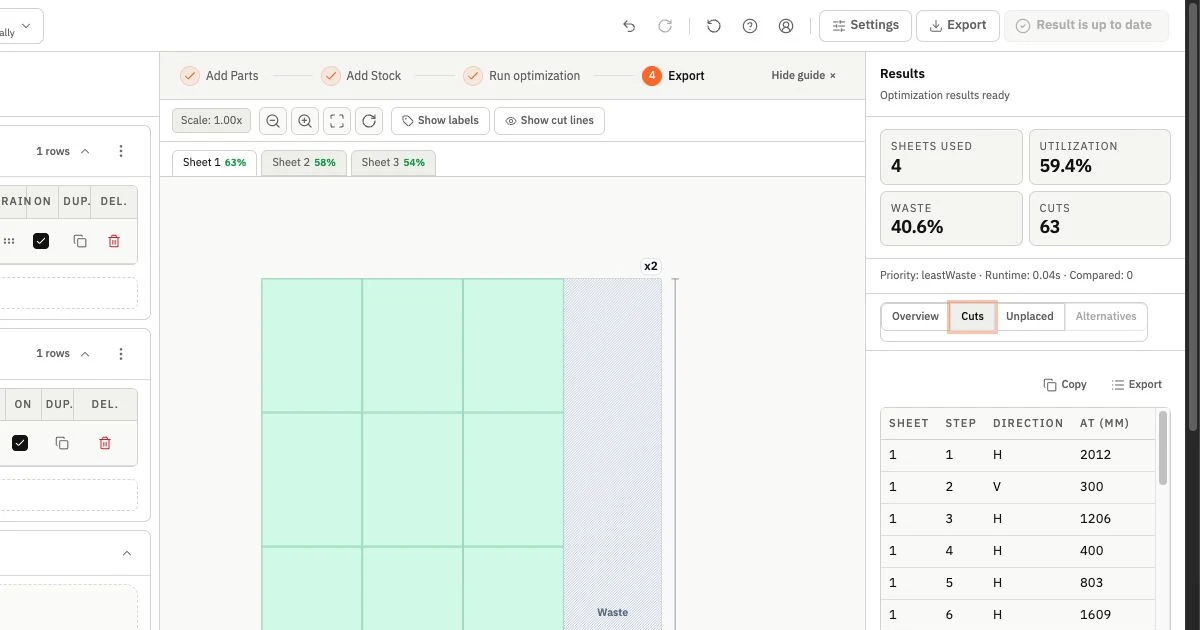
Online nesting software arranges parts on sheet material so you can review a cutting layout before buying or cutting stock. For rectangular panels, the useful comparison starts with your own cut list: can the tool fit the required parts, preserve their orientation, and give you an output you can actually use?
Choose a tool that supports your part shapes and cutting process, then test its kerf settings, rotation rules, stock limits, and exports on the same small job. Check the plan limits before entering a larger project. A high utilization percentage is useful only when the layout includes every required part and respects the job's constraints.
Start with rectangular nesting or true-shape nesting
Rectangular nesting software works with part widths, lengths, and quantities. It is a natural starting point for cabinet sides, shelves, doors, and other rectangular blanks cut from plywood, MDF, plastic, or metal sheets.
True-shape nesting works with the actual outlines of parts, including curves and irregular profiles. For example, an L-shaped bracket may leave space that another part can occupy. A rectangular layout planner treats the bracket's enclosing rectangle as occupied instead. Autodesk's automatic nesting documentation describes this bounding-rectangle approach.
Choose based on the geometry you need to arrange. If your work is mostly rectangular furniture panels, start by evaluating rectangular sheet nesting. If you need to interlock irregular profiles, include true-shape support in your requirements.
CutOps plans rectangular parts on rectangular stock. It does not nest arbitrary outlines. The plywood and MDF cutting workflow shows the kind of work it is designed to support.
Check that the layout suits your cutting process
A rectangular layout is not automatically a practical saw plan. A panel saw needs a sequence of straight cuts through the sheet or a separated section; a CNC router can follow individual part outlines. Ask whether the software produces a cutting sequence you can review, or only a picture of packed parts.
For saw work, inspect the order of cuts and the size of the pieces you will need to handle. For CNC work, establish where layout planning ends and machining preparation begins. A geometry file still needs the correct tools, compensation, workholding, and toolpaths in the target workflow.
CutOps provides layout planning and an ordered cut sequence for review. Its DXF package contains machine-neutral geometry for downstream CAD/CAM validation; it does not generate G-code or CNC toolpaths. See the CNC panel nesting and export workflow before choosing a tool for machine output.
Compare the settings that determine whether parts fit
Kerf and usable sheet dimensions
Kerf is the width of material removed by the cut. Check that the nesting software accounts for it, and use the measured value for your process. A layout calculated with zero kerf can appear efficient while leaving too little room for the actual cuts.
Use usable stock dimensions as well. Damaged edges and planned edge trimming reduce the area available for parts. Check whether a tool expects full sheet dimensions plus separate trim settings, or dimensions that already exclude the trim. Applying the allowance twice produces an unfair comparison.
The kerf setup guide explains how to measure and enter this value. For a router, also verify how the chosen software handles tool clearance and part spacing; a saw kerf field alone does not establish a machining strategy.
Per-part rotation and grain direction
Look for control over each part's orientation. Some panels can rotate 90 degrees, while others must keep a specific direction for appearance or construction. A global rotation switch is not enough when a project contains both types.
A rotation lock prevents a 90-degree turn. Grain controls vary between tools. In CutOps, grain-direction enforcement keeps a grain-marked part in its entered orientation; it does not automatically match the grain of parts to stock sheets. Align the entered part dimensions with the orientation required by the material, and review the resulting layout. Check which controls are available on the plan you intend to use. The grain-direction planning guide covers orientation requirements in a woodworking context.
Available stock and unplaced parts
Software should let you distinguish stock you own from stock you can buy. Test the actual quantity of each sheet size, including usable rectangular offcuts where appropriate. A plan based on unlimited sheets answers a different question from a plan restricted to the two sheets in your workshop.
Check what happens when a job cannot fit. A useful result identifies unplaced parts and their quantities clearly. Do not compare the utilization of a partial layout with a complete one as though both fulfilled the same order.
Test each tool with the same small cut list
Use a representative job before importing your entire project library. The following eight-part list is an illustrative evaluation exercise, not a finished cabinet design or a measured software benchmark. All parts use the same material and thickness.
| Part | Width | Length | Quantity | 90° rotation |
|---|---|---|---|---|
| Side panel | 350 | 720 | 2 | Locked |
| Shelf | 350 | 564 | 4 | Allowed |
| Rail | 100 | 564 | 2 | Allowed |
For this exercise, enter two usable sheets, each 1220 mm wide and 2440 mm long, with a 3 mm saw kerf. Keep units, sheet quantities, part orientation, and any additional allowances identical across tools. Substitute your actual measured values and required rotation rules when evaluating a real job.
Record five things from each result:
- Completion: all eight parts placed, with the correct quantities and side-panel orientation.
- Sheets used: how many sheets the result consumes from the available stock.
- Material utilization: how the tool defines its percentage and which sheet area it includes.
- Cutting practicality: whether the sequence and handling suit your equipment.
- Export usefulness: whether the saved output preserves dimensions, labels, and the selected layout.
You can prepare a larger comparison using the cut list template. Repeat the exercise with one representative production job before deciding: a result on a small example cannot establish which software will perform best on every list.
Read nesting results beyond the utilization percentage
Sheet count, completion, and practical cutting effort belong beside utilization in your comparison. Two layouts may use the same number of sheets yet leave very different offcuts. A larger rectangular remainder may be more useful to your next job than several narrow strips.
Check the calculation behind the headline percentage. A simple area ratio is finished part area divided by the area of the sheets used, but tools may account for trim, kerf, and remnants differently. The sheet utilization calculator and guide helps you compare results using consistent assumptions.
If you compare different strategies, keep the inputs unchanged and record the search settings. More search time does not guarantee fewer sheets. CutOps uses heuristic search and reports the best layout found within its search budget; it does not certify a global optimum. Its optimization methodology explains this boundary.
Open an export before committing to a tool
Choose the output around the person or system receiving the job:
- PDF: a readable layout and operational report for review or printing.
- CSV: structured parts, stock, or cut-list data, with column mapping checked against the receiving system.
- DXF: geometry for a CAD/CAM workflow, with units, scale, origin, and layers verified after import.
- Project file: a way to reopen and revise the job, if the tool supports it.
Export the test job and open the file. Confirm that quantities, dimensions, labels, and the selected result are preserved. An export button is only useful when the file serves your next step. Check access to the format you need before spending time entering a full job.
Compare free online nesting software by its actual limits
“Free” can mean a limited trial, a recurring allowance, or access to only some features. Check runs per month, parts per run, required account verification, and export access. Also distinguish local project saving from cloud backup if you work across computers.
In CutOps, guests can try core rectangular nesting without an account and export a PDF. Verified Free accounts add CSV import and export within the Free plan's limits. Pro adds advanced controls, material matching, grain-direction enforcement, strategy comparison, cloud backup, and additional export formats. Per-part rotation locks and kerf planning are available in core planning.
Use the free cut list software overview and current plan comparison to check the allowance and features that fit your workload. Evaluate the tier you would actually use, including any output you need for production.
Where CutOps fits
CutOps is a candidate when you need browser-based rectangular nesting for sheet and panel projects, with dimensions entered as a cut list and results you can inspect before cutting. It suits the evaluation above: enter parts and available stock, set kerf and rotation rules, then review the layout, unplaced parts, and export.
For irregular contours or direct machine programming, include software that explicitly supports those requirements. If your immediate task is arranging rectangular panels, try your own cut list in CutOps and use the checklist to judge whether the result fits your workflow.
Common questions about online nesting software
Is nesting software the same as a cut list optimizer?
For rectangular sheet work, the terms often describe overlapping tasks. A cut list records what parts you need; a nesting or layout optimizer determines where those parts fit on stock. Check the supported geometry and output instead of relying on the product label.
Can rectangular nesting software handle plywood and MDF?
Yes, when the required blanks are rectangular. Enter usable sheet dimensions, the correct kerf, and orientation restrictions. Veneered or patterned panels may need grain controls; the software still needs accurate input dimensions and a review before cutting.
Does DXF export mean the layout is ready for a CNC machine?
No. DXF can carry geometry without carrying a machining process. Confirm the import in your CAD/CAM software and prepare the required toolpaths and machine output there. CutOps exports machine-neutral DXF R12 geometry, not G-code.
What is the best online nesting software for a small workshop?
The best fit is the tool that handles your parts, equipment, and handoff with the least repeated work. Compare a small job and a typical larger job using the same constraints. Choose based on complete, usable results and the plan you need, rather than a utilization screenshot alone.